
The Network and WiFi Setup Everyone Asks Me About
I get asked about my network and WiFi setup often enough that it’s worth writing the whole thing down. Part of that is professional habit — I design and troubleshoot networks for a living. But honestly, most of it comes down to one decision made early, before any of the current gear existed. When we bought this house, one of the first things I did was have it wired.
Why I Had It Wired First
The House Itself
The house and garage/workshop both got CAT6 cabling, run back to a 24-port patch panel in a central closet. Most key rooms have two network jacks. CAT6 is rated for a full 1Gbps out to the standard 100-meter run, and it can push 10Gbps over shorter distances — plenty for a house this size. That cabling decision predates every router and access point on the network today. It’s still the single most important piece of the whole setup. Wireless technology keeps changing every few years, but a wall full of properly terminated CAT6 doesn’t go obsolete. Every wireless upgrade since has just been new gear plugged into infrastructure that was already right.
What I’d Use Today
CAT6 is more than solid. But if I were wiring a home from scratch today, I’d reach for CAT6A over the newer CAT8 standard. CAT8’s headline speeds are tempting on paper. Its 30-meter distance limit and mandatory heavy shielding make it a data-center cable, though, not a residential one. CAT6A genuinely delivers 10Gbps over the full 100-meter runs a house actually needs. That’s why it’s the real future-proof choice for home wiring right now — not CAT8.
The Shape of the House
The shape and layout of the house itself is part of why the network looks the way it does. It started as a fairly ordinary two-storey when it was built in 1970. About 25 years later, it was substantially renovated and expanded, adding a semi-open third-floor loft with a vaulted ceiling. That addition left the whole structure essentially cube-shaped. The two main floors run about 1,100 square feet each. The loft adds roughly 650 more, and the garage/workshop is around 600 square feet on its own. That vaulted, semi-open loft is also exactly why it needs the least dedicated Wi-Fi coverage of any level. Fewer walls means fewer obstructions for a signal to fight through — which isn’t true of the ground floor at all.
Choosing Wi-Fi 7 and TP-Link’s Archer BE Lineup
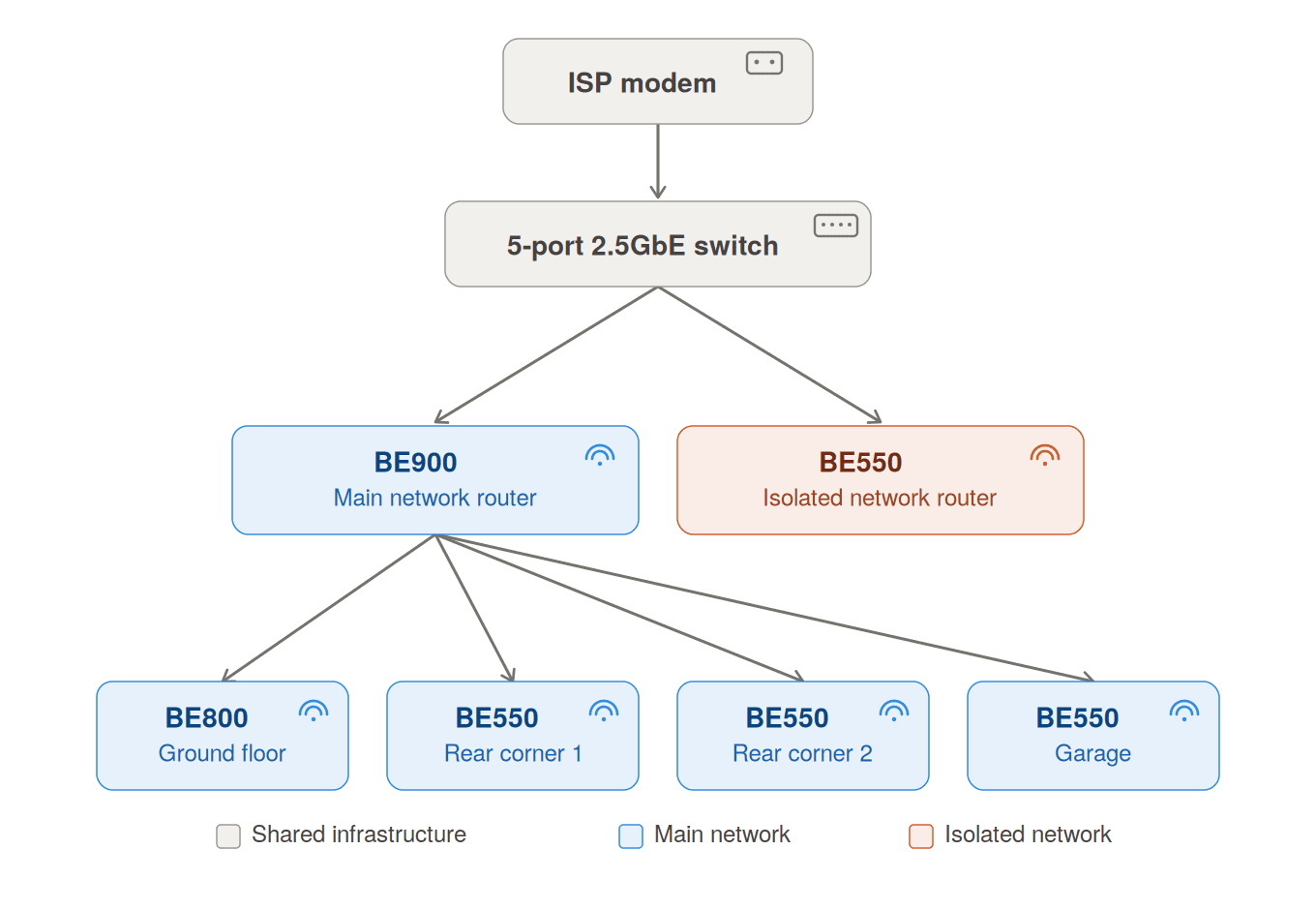
The wireless side runs on TP-Link’s Archer BE-series — their Wi-Fi 7 lineup. A BE900 sits centrally on the second floor as the main router. It acts as the flagship of the whole network: the most capable unit in the lineup, earning that role by covering most of the second and third floors on its own. The ground floor has the most physical obstruction in the house, so it gets its own centrally located BE800 EasyMesh node, plus two BE550 nodes covering the rear ground-floor corners specifically. A fifth BE550 covers the garage/workshop. The third-floor loft, by contrast, has the least obstruction anywhere in the house and needs the least dedicated coverage. Every one of those nodes runs a wired 2.5GbE backhaul back to a 24-port 2.5GbE switch in the network closet, rather than relying on wireless backhaul between nodes.
Matching Router Tier to Job
The three models aren’t identical hardware wearing different labels — the differences map cleanly onto the job each one is doing:
- BE900 (flagship):
Quad-band2.4GHz + 2×5GHz + 6GHz12 antennas2× 10Gbps ports
The most capable consumer router TP-Link makes, which is exactly the spec sheet you want on the unit covering two entire floors. - BE800:
Tri-band2.4 / 5 / 6GHz8 antennas1× 10Gbps port
Still a serious router, just scaled to cover one floor instead of two — precisely its job here. - BE550 (the workhorse):
Tri-band Wi-Fi 72.4 / 5 / 6GHz2.5Gbps Multi-Gig ports
Fewer antennas and lower per-band link rates than the units above it, but a corner node or a garage doesn’t need the flagship’s antenna count or peak link rate — it needs a wired backhaul port fast enough not to bottleneck the connection, and that’s exactly what the BE550 delivers at a fraction of the cost.
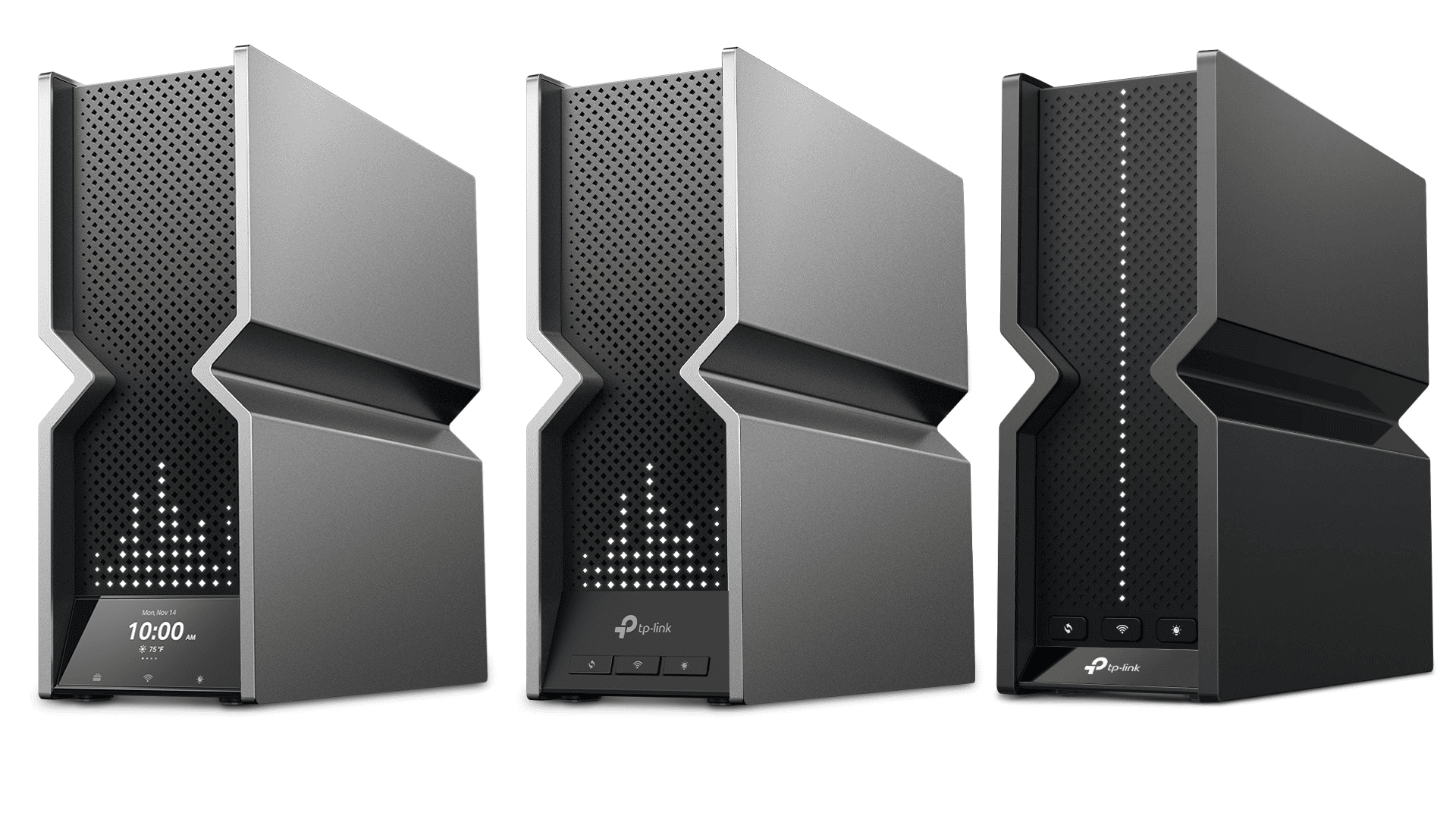
TP-Link Archer Wifi7 Routers: (L-R) BE900, BE800, BE550
Matching router tier to job, rather than deploying identical and identically expensive hardware everywhere, is the kind of decision that looks obvious in hindsight. It’s also the kind that gets skipped constantly in real installs.
Scroll to see the full diagram →
Scroll to see the full diagram →
What Wi-Fi 7 Actually Changes
Every new generation of Wi-Fi claims to be faster than the last. It’s worth being specific about what’s actually different this time, rather than taking the marketing number at face value. Three things matter more than the headline speed:
Wider Channels, Denser Encoding
Wi-Fi 7 supports 320MHz-wide channels, double the 160MHz maximum of Wi-Fi 6 and 6E. A wider channel means more data lanes open at once — which matters far more in a busy RF environment than in an empty lab. Wi-Fi 7 also introduces 4K-QAM modulation, up from 1024-QAM on Wi-Fi 6. That’s a denser way of encoding data onto the radio signal, packing more information into the same airtime. It only works if your signal is clean enough to support it, though — which is a big part of why signal quality and node placement still matter more than the spec sheet.
Multi-Link Operation and OFDMA
The bigger practical change is Multi-Link Operation, or MLO — a genuinely new capability rather than a bigger number on an old one. Previous Wi-Fi generations connected a device to one band, on one channel, at a time. MLO lets a single Wi-Fi 7 device use multiple bands simultaneously — 5GHz and 6GHz at once, for example. That combines them for more aggregate throughput. Just as importantly, the device can fall back instantly to whichever link is still clean if one band gets congested or interfered with. That’s a real reduction in dropped connections and latency spikes, not just a bandwidth bump.
The other underappreciated piece, carried over and improved from Wi-Fi 6, is OFDMA — the ability for an access point to serve multiple devices in a single transmission window, instead of strictly one at a time. That matters enormously in a house running 50-plus wireless devices at once. It’s the exact situation this whole setup was designed around.
Why EasyMesh Instead of Extenders, or a Locked Single-Brand System
EasyMesh is a Wi-Fi Alliance industry standard, not a single company’s proprietary system. That puts it in a genuinely different category from both old-school Wi-Fi extenders and the closed mesh ecosystems — Deco, eero, Orbi, Nest Wifi, and TP-Link’s own older OneMesh — that dominate the consumer space. The certification means EasyMesh-compliant devices from different manufacturers can, in principle, mesh together. In practice, though, I’ve kept every node in this build within TP-Link’s own Archer BE lineup. Staying within one vendor’s ecosystem still gets you the smoothest coordination and the fewest surprises, even under an open standard.
One Network, No Manual Reconnecting
What EasyMesh actually buys you over the mesh systems most people are used to is one SSID across the entire house, with seamless roaming. Your phone hands itself off between nodes as you walk through the house — you never see a second network name, and you never manually reconnect to anything. The nodes also coordinate channel and band selection with each other automatically, rather than each one picking independently and potentially interfering with its neighbors.
Every node here also runs a dedicated wired 2.5GbE backhaul instead of a wireless one. That means none of a client device’s airtime gets split with the traffic the nodes use to talk to each other — the specific, well-known weakness of the classic plug-in Wi-Fi extender. An extender receives a weak signal and rebroadcasts it on the same radio, typically cutting effective throughput roughly in half. Devices also tend to “stick” stubbornly to a weak, already-connected extender instead of roaming to a stronger one nearby. Wired backhaul removes that penalty entirely — the nodes talk to each other over the closet switch, not over the air.
Why This Matters for Calls and Streaming
Seamless roaming matters most for exactly the kind of traffic that can’t tolerate a hiccup: Wi-Fi calling, video calls, and audio or video streaming while you’re moving through the house. A slow page load during a rough handoff is invisible — you barely notice a half-second delay. A dropped or garbled call is not. Properly implemented EasyMesh systems lean on the same roaming-assist standards behind that resilience: 802.11k, v, and r. These let the network proactively steer a device to a stronger node before its current connection degrades, rather than waiting for it to fail first. Cheaper mesh implementations often skimp on proper support for these standards. That’s exactly why some “mesh” systems still leave you with a phone stubbornly clinging to a weak, dying connection instead of moving to a strong node nearby — precisely the failure mode that matters most when there’s a call in progress.
50-Plus Devices, One Network (Mostly)
The honest reason all of the above matters isn’t theoretical. This network is currently carrying somewhere north of 50 devices — and that’s before counting whatever customer hardware happens to be on the bench that week. Phones, tablets, laptops, desktops, and NAS units all want real bandwidth, and none of them tolerate latency well.
A Mismatched Crowd of Devices
Alongside them sits a genuinely large population of smart home devices — thermostats, light switches, security cameras, a video doorbell, and various connected appliances. Many of these only speak 2.4GHz and don’t need much bandwidth individually, though the cameras and doorbell lean harder on that connection given the video they’re constantly streaming. All of it adds to the sheer number of connections every access point in the house has to juggle simultaneously. That mismatch — a handful of devices wanting maximum throughput, sitting on the same network as dozens of devices that barely sip it — is exactly the scenario OFDMA and proper band steering exist to solve. They keep the low-power 2.4GHz traffic from crowding out everything else, instead of forcing the whole house through one shared, congested band the way a single consumer router from a decade ago would.
The one deliberate exception to “everything on one network” is the sixth BE550. It runs as the main router for a completely separate, isolated network reserved for customer devices — new PC builds, repair jobs, anything that isn’t mine but is currently on my bench. Keeping that traffic physically segmented from the rest of the household and business network isn’t optional caution. It’s just correct practice when you regularly have other people’s hardware connected to your network. It also keeps that unpredictable device population from ever affecting the performance or security posture of everything else described above.
All of this sits behind a cable connection running 2Gbps downstream / 200Mbps upstream. That’s part of why the 2.5GbE wired backbone matters rather than being overkill — Gigabit wiring would already be the bottleneck on download speed alone, before you even get to local file transfers between the NAS units and the rest of the network.
The NAS devices that back up my business, studio, and media library all live on this same network. If you want the storage side of this picture, that’s a separate write-up on its own.
Not Just My Own House
This isn’t just theory from my own build, either. I’ve installed this same TP-Link EasyMesh Wi-Fi 7 lineup for clients who came to me with their own unique, genuinely difficult coverage problems — the kind older or lesser gear had already failed to solve. Both of the examples below ran wireless backhaul rather than the wired setup I have at home, simply because running new cable wasn’t part of either job. That’s exactly the kind of situation EasyMesh’s node-to-node coordination is built for, provided the nodes are placed and tested properly rather than just plugged in wherever’s convenient.
A Pattern I See Constantly
In my professional experience, most people either overestimate what a bare-minimum setup can actually deliver, or underspend entirely and just live with whatever modem/router combo their ISP handed them. They accept dead zones and dropped connections as simply how Wi-Fi is, rather than as a fixable problem.
Upgrading someone off an ISP-supplied all-in-one unit and onto a properly designed EasyMesh setup, like the two examples below, is one of the most common jobs I do. It’s also consistently one of the most satisfying — the improvement is immediate and obvious to the customer the moment it’s done.
Two Real Installs
Example 1: a classic two-storey farmhouse, recently renovated with luxurious, thick, wide wood wall trims, plus the narrow hallways and doorways typical of a home that age. That’s exactly the kind of construction that eats a Wi-Fi signal alive. Two BE800 units in EasyMesh, on wireless backhaul, only performed as well as they did because of careful, deliberate placement. Once dialed in, though, I measured 400-900Mbps around the house on their 1Gbps service.
Example 2: a large executive rancher, expanded to two-storey at one end, with similarly thick luxury finishes throughout. A river rock wall around the main living room fireplace was severely blocking Wi-Fi to the bedroom directly behind it. That problem got worse because the internet service enters the house at the opposite end, on the upper floor — with significant wall obstruction the whole way across. Two BE900 units in EasyMesh, again using only wireless backhaul, delivered consistent speeds in the hundreds of Mbps throughout the house once placement and testing were dialed in. This customer’s key requirement was reliable Wi-Fi calling everywhere in the house, and this setup has delivered that without issue.
If any of this sounds like more infrastructure than your own home or office currently has, and you’d like it to look more like this, it’s worth mentioning: specifying and configuring gear like this — picking the right router and mesh nodes for the space, then getting them set up correctly — is a great example of exactly what I do for clients at Raindog Solutions.
P.S. Running new network cabling through your walls isn’t a service I offer. But if suitable cables are already installed and terminated, I can make sure everything plugged into them actually works right. If cabling isn’t installed yet and might be needed, you can hire me for an in-home consultation — I’ll help you make a solid plan based on your network needs, then arrange for a suitable electrician to install whatever cabling you need.