The NAS Setup That Runs My Whole Studio, Business, and Media Library
People are sometimes surprised to hear how much hardware sits behind a one-person business and home studio. In my case, that’s four NAS units doing very different jobs, plus a homemade dashboard watching over all of it. Tying it all together is the wired and EasyMesh home network I’ve written about separately.
The Master Copy
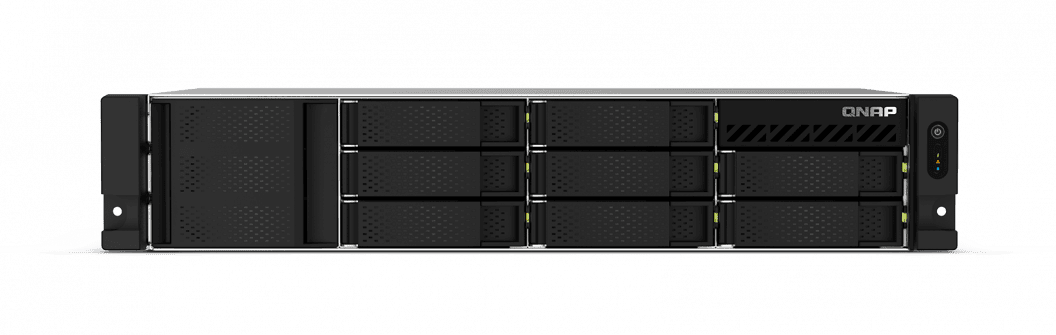
The core of it is a QNAP TS-864eU-RP 8-bay NAS. I’ve designated it the canonical master for everything that actually matters — business records, the creative catalog, client files. Snapshots stay enabled, so a bad file overwrite or a ransomware scare doesn’t mean an actual loss. It’s also my newest NAS, having recently replaced a much older unit that finally failed. It has 2.5GbE built in — plenty for how I actually use it — with room to add a 10GbE card later if I ever need it.
Storage-wise, it’s currently running four separate mirrored pairs. Two 2TB SATA SSDs handle RAID1 duty for the OS, apps, and cache, and two 2TB SATA HDDs cover a local Dropbox backup in RAID1. The remaining two 16TB RAID1 arrays — four 16TB drives total, mirrored in pairs — hold computer backups, critical business files, studio project backups, and generated AI content. The QNAP is also powerful enough to run its own suite of AI tools, which help me organize my images and catch duplicates.
The Backup Copy
A second QNAP NAS, a TS-431+, sits as a scheduled-wake, receive-only local second copy. It wakes on a schedule, pulls a sync from the master over HBS3’s RTRR, and goes back to sleep. That makes it a near-air-gapped copy — one that isn’t sitting online 24/7, waiting to be a target. It’s not purely a backup target, though. It also holds my music collection, plus a massive repository of owner’s manuals I might feed into an AI for reference someday. It’s running a 4TB HDD in RAID1 and a 6TB HDD in RAID1, and it’s limited to 1GbE.
Media Storage
Two older Asustor 4-bay NAS units — an AS-204TE and an AS1004T — handle the unglamorous but voluminous job of storing my entire video collection for the household’s Kodi boxes. They’re kept deliberately separate from anything business-critical. Both run RAID1 HDD arrays: four separate mirrored volumes in total, split across the two units — two 4TB arrays, plus 6TB and 8TB arrays. Like the TS-431+, they’re limited to 1GbE.
Tiered Backup Strategy
None of this is organized casually. I’ve built out a tiered data classification system, Tier 0 through Tier 4. “Back everything up equally” is a great way to spend a lot of money protecting things that don’t actually matter — and under-protecting the things that do.
Here’s what that actually looks like, and why it’s worth the effort. Not every file deserves the same amount of protection, so I don’t spend the same effort protecting all of them.
At the top, Tier 0 and Tier 1 are the files where losing them would actually hurt. That’s business and legal documents with no plan B, and creative work like my music catalog and album art that simply can’t be remade the same way twice. Those get the full treatment: the 3-2-1 approach. Three total copies, on two different types of storage, with one copy living somewhere offsite entirely — Backblaze B2, once local organization is fully settled.
Further down, Tier 2 covers things that would be a real pain to lose but could eventually be rebuilt, given enough time. Tier 3 is stuff I could just download or buy again if it vanished — worth backing up, but not worth the same insurance policy as Tier 0 and 1. At the bottom, Tier 4 is genuinely disposable: cache files, temp exports, things with zero value if they disappeared tomorrow. Those don’t get backed up at all, and that’s deliberate, not an oversight.
The result is a system where the files that would actually cost me sleep are protected like it. I’m not wasting money treating a browser cache folder with the same seriousness as an unrepeatable master recording.
Household Central
The part I’m probably most proud of, though, is “Household Central.” It’s a WordPress dashboard I built and host directly on the master NAS. It pulls live hardware telemetry — CPU temps, system health — off all four of my studio PCs — three of which are also busy as AudioGridder nodes during a mix — through HWiNFO64 into InfluxDB and out to Grafana panels, alongside local weather, air quality, and pollen data. It turns “is everything actually okay right now” from a five-minute investigation into a single glance.
Beyond the telemetry, it’s become the household’s actual home base. It’s got quick-access links straight into the control panels for every network device that matters — the main router, both QNAP NAS units, the security cameras, all of it. I’m never hunting for an IP address or a bookmark when something needs attention. It also runs a shared household event calendar and a built-in messaging system. Those sound almost mundane next to the hardware telemetry, but day to day, they’re honestly some of the most-used parts of the whole dashboard.
Running WordPress Right on the NAS
QNAP’s app store offers a turnkey WordPress and matching MariaDB database install. That’s exactly how I got Household Central running directly on the 8-bay NAS, rather than needing separate hosting for it. No extra monthly bill, no separate host to manage — the dashboard lives on the same hardware it’s monitoring.
What Docker Opens Up
Docker is a different animal entirely, and a much bigger one. Where the WordPress app store install is a single, fixed-purpose package, Docker turns the NAS into a general-purpose server. It’s a way to add whole new capabilities to hardware I already own, instead of buying another box or paying for another subscription.
A few examples of what that actually looks like: Instead of digging through a filing cabinet of PDF manuals when an appliance acts up, a locally-hosted AI model could eventually let me just ask. No sending my own documents off to someone else’s cloud to do it. Instead of juggling a different app for every smart home brand, a Home Assistant instance would put the thermostats, cameras, and doorbell behind one control panel. And instead of every device on the network fighting off ad trackers on its own, something like Pi-hole blocks them once, for everything, at the network level.
I haven’t committed to a specific lineup yet. But that’s the real potential here — the NAS stops being just a file server and starts being actual infrastructure.
Clean Power, Always
One more piece worth mentioning: every one of these NAS units sits behind a UPS (Uninterruptible Power Supply, aka Battery Backup). A data backup strategy this deliberate doesn’t mean much if a power blip corrupts a disk array mid-write. Clean, protected power is part of the strategy here, not an afterthought. That’s honestly a big enough topic to deserve its own write-up at some point.
If your own storage/backup setup is a pile of external drives and a prayer, this is roughly what the other end of that spectrum looks like. And if you want help getting from one to the other, that’s exactly the kind of network design and NAS/storage setup work I do at Raindog Solutions.